 小影邮箱
小影邮箱邮件桌面通知怎么设?Alerts Without the Noise
Key Takeaways
- 邮件桌面通知 decide whether an email interrupts you.
- Every alert costs a few seconds of focus.
- You can keep useful 邮件桌面通知 and drop the rest.
- Route noisy mail to a folder and mute the thread.
- Review your alert rules twice a year.
What 邮件桌面通知 really do to focus
邮件桌面通知 is a small popup that pulls your eyes away from work. Each one breaks a train of thought.
Refocusing takes longer than the alert itself. A two second glance can cost a full minute.
That is fine for a message from your manager. It is wasteful for a newsletter.
The problem is rarely one alert. It is the twentieth alert in an hour.
Good 邮件桌面通知 rules start with one question. Does this message need me right now?
If the answer is usually no, the alert should be off by default.
Most mail apps ship with alerts on for everything. That default serves the app, not you.
Changing it takes a few clicks. The benefit lasts all year.
Turn alerts off first, then add back the few senders who matter.
A single popup feels harmless on its own. Twenty of them reset your attention all morning.
That is why the count matters more than any one message.
Choosing which mail earns a 邮件桌面通知
Not every sender deserves the same treatment. Sort them into three rough groups.
The first group is people. Colleagues, clients and family usually earn an alert.
The second is systems. Receipts and machine notices can wait in a folder.
The third is bulk mail. Newsletters and offers rarely need a popup.
That is where 邮件桌面通知 earns its keep. One rule per group is enough.
An alert list is the heart of 邮件桌面通知. Keep it short and current.
Ask how fast a reply is really needed. A chat message is urgent. A report is not.
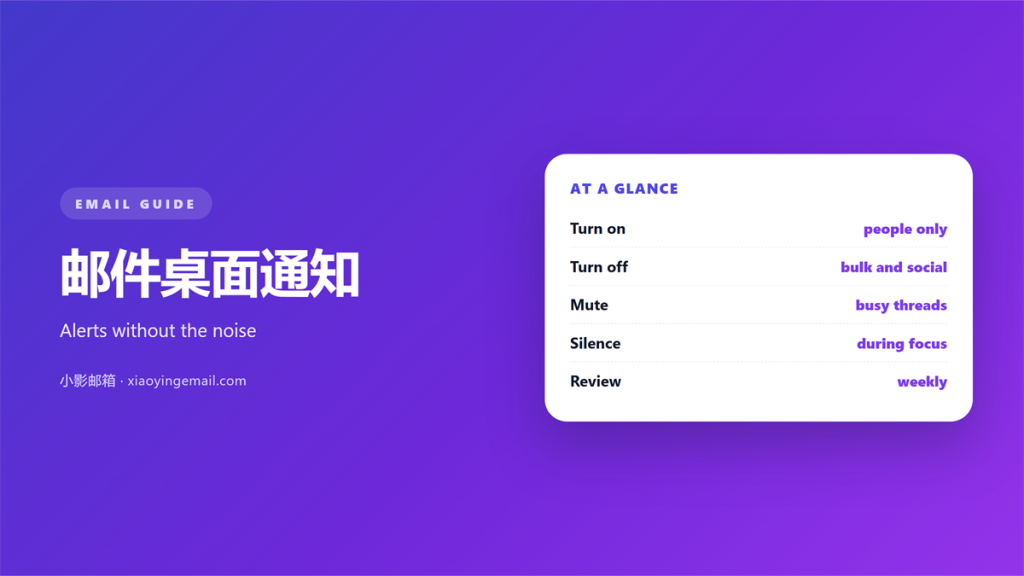
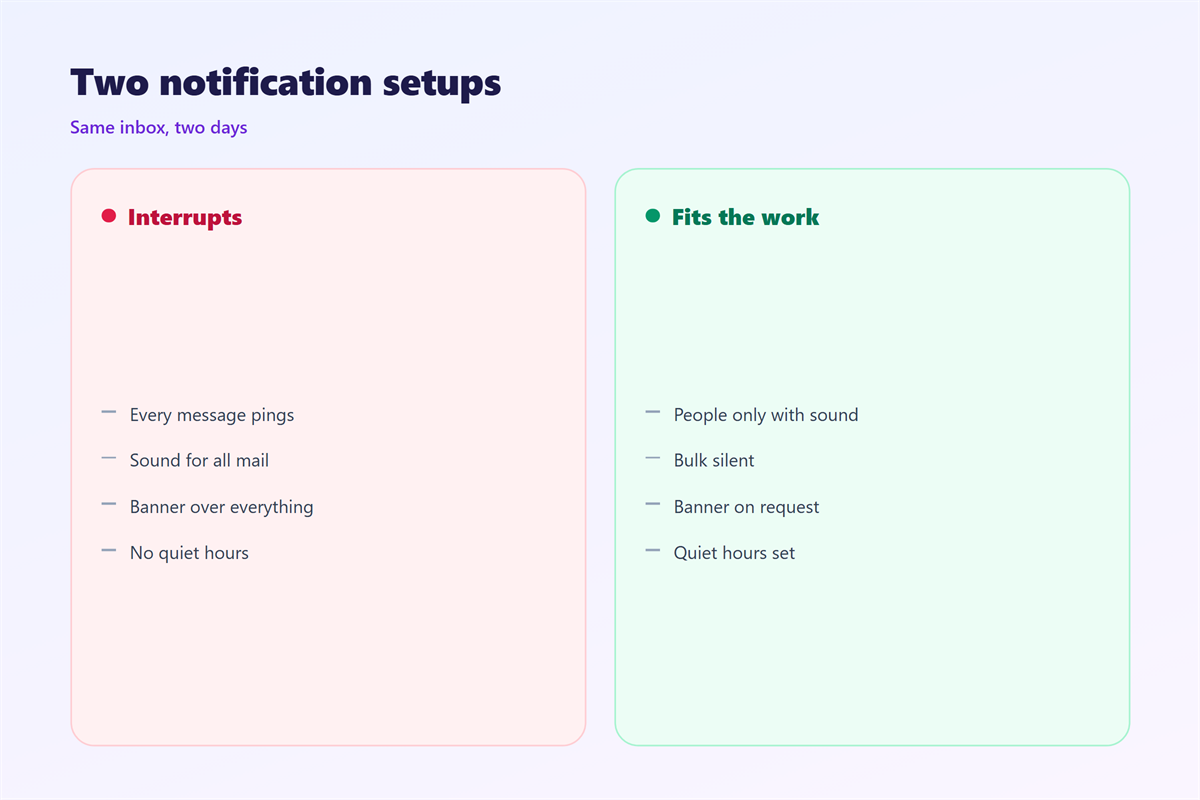
- People: alert and sound on.
- Systems: badge only, no sound.
- Bulk mail: no alert at all.
A quiet inbox is not the goal. A quiet inbox for the wrong mail is.
Five trusted senders beat fifty noisy ones.
Write each rule down. A rule you cannot explain is one you will not trust.
Review the list when your role changes. Old rules quietly expire.
Tuning sound, badge and banner
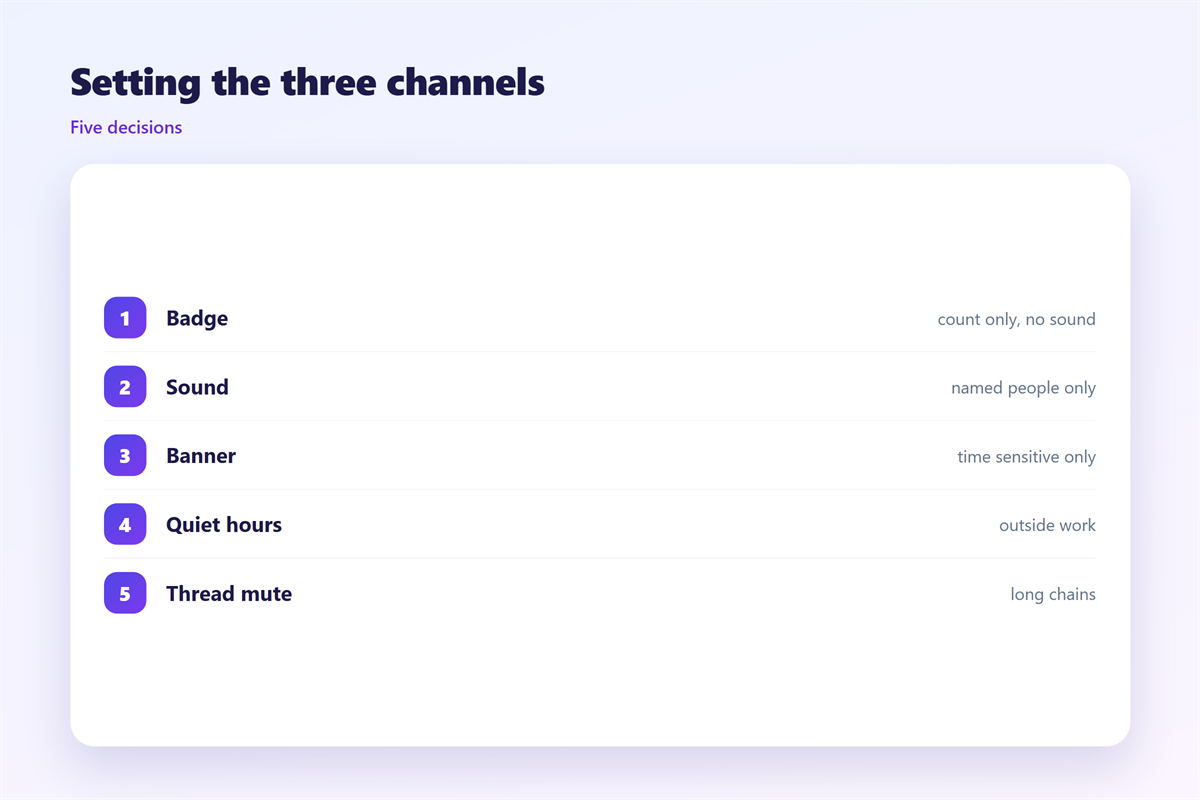
Three channels can carry an alert. Sound, a badge on the icon, and a banner on screen.
They do not have to work together. Pick the lightest one that still works.
A badge is the gentlest option. It waits for you to look at the icon.
A banner is stronger. It appears and fades on its own.
Sound is the loudest part of 邮件桌面通知. Use it for the smallest group.
Turn sound on for people only. Leave everything else silent.
Some apps let you delay a banner. Thirty seconds is less rude than none at all.
These small changes keep alerts useful. They also protect the people around you.
A silent badge still asks for attention. Turn it off for folders you check once a day.
Test each channel on its own. Knowing what pulled you away helps you trim it.
Quiet hours and thread mutes
Even good alerts arrive at bad times. Quiet hours fix that without deleting rules.
Set a window for the evening and the weekend. Alerts then wait until morning.
Quiet hours are the backbone of 邮件桌面通知. They set the boundary for everything else.
Threads need their own control. One busy conversation can flood the screen.
Muting a thread keeps the mail and stops the popups. That beats deleting it.
Our notes on 邮件静音 cover thread mutes in detail.
Pair mutes with a wider schedule. Our guide to 邮件免打扰 shows how to set one.
Badges and sounds are covered under 邮件提醒 as well.
Set quiet hours once and forget them. The phone respects them at night.
Daytime focus needs its own window. Two protected hours beat a whole day off.
Common alert mistakes
Most people keep the settings they found on day one. That is the first mistake.
Defaults favor the sender, not the reader. Every app wants to look busy.
A second mistake is treating all senders the same. A manager and a bot are not equal.
A third is ignoring the phone. Desktop rules rarely copy to mobile.
Set the phone separately. Check both after a major update.
Some people turn everything off in frustration. That hides the mail that matters too.
Fewer, better alerts beat none at all. You still need to know when a real person writes.
Keep a short list of exceptions. Family and on call numbers can always ring.
That list should stay tiny. Growth here defeats the point.
Take ten minutes once a quarter. Rebuild the list as your work changes.
Testing your 邮件桌面通知 setup
Test 邮件桌面通知 on a calm afternoon. Do not find a silent phone during a crisis.
Send yourself a message from another account. Check that it appears within a minute.
Then send one from a bulk sender. It should stay quiet.
If the wrong alert fires, the rule is wrong. Fix the rule, not the habit.
Repeat this check after any app update. Updates often reset notification settings.
Good 邮件桌面通知 settings survive a busy week. You stop noticing them.
That is the sign it works. The right message arrives and the rest stays out of the way.
Log one week of alerts in your head. Which were useful and which were noise?
Trim the noise and keep the rest. Repeat the test each season.
The general topic is covered in 邮件通知, a good companion piece.
FAQ
Are 邮件桌面通知 bad for deep work?
Alerts break focus, so timing matters more than the alert itself. Batch them between tasks.
How many 邮件桌面通知 should I allow?
Fewer than you think. Start with five senders and add one only when you miss it.
Do 邮件桌面通知 work in every mail app?
Every major app supports them. The names differ, but sound, badge and banner are common.
Should I turn alerts off at night?
Yes. Quiet hours are the simplest way. Urgent senders can still ring through.
References
- Microsoft: Change notification settings in Windows.
- Apple: Use Do Not Disturb and Focus.
- Google: Turn notifications on or off in Chrome.
评论
还没有评论,来说两句吧。
评论功能已关闭。