 小影邮箱
小影邮箱邮件账户设置怎么做?Add an Account Correctly
Key Takeaways
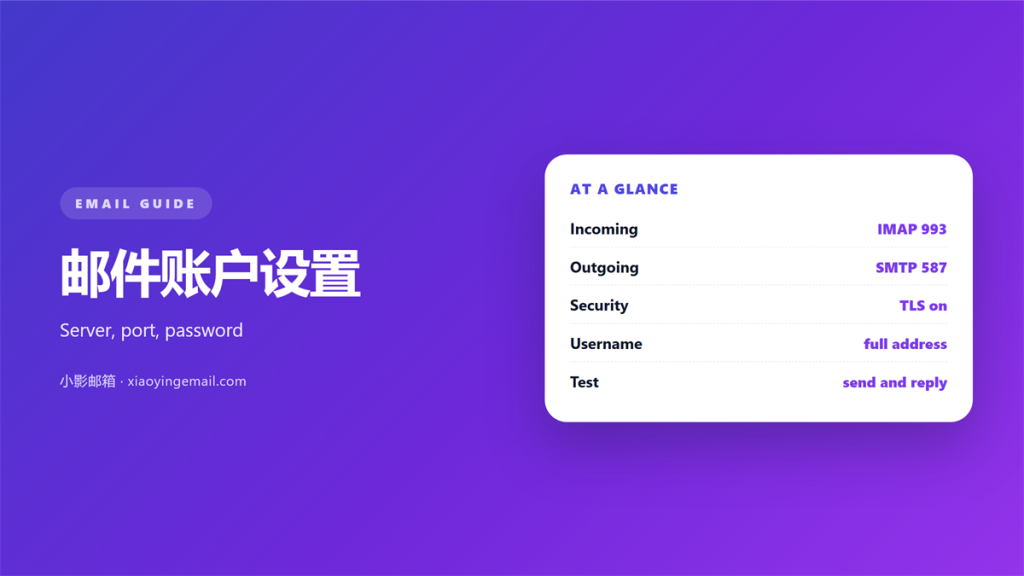
- 邮件账户设置 needs four correct values.
- A wrong server name stops sync at once.
- Ports and encryption must match the server.
- An app password is often required.
- Test both sending and receiving.
What 邮件账户设置 actually configures
邮件账户设置 is the link between an app and a mailbox.
Every client asks for the same small set of details.
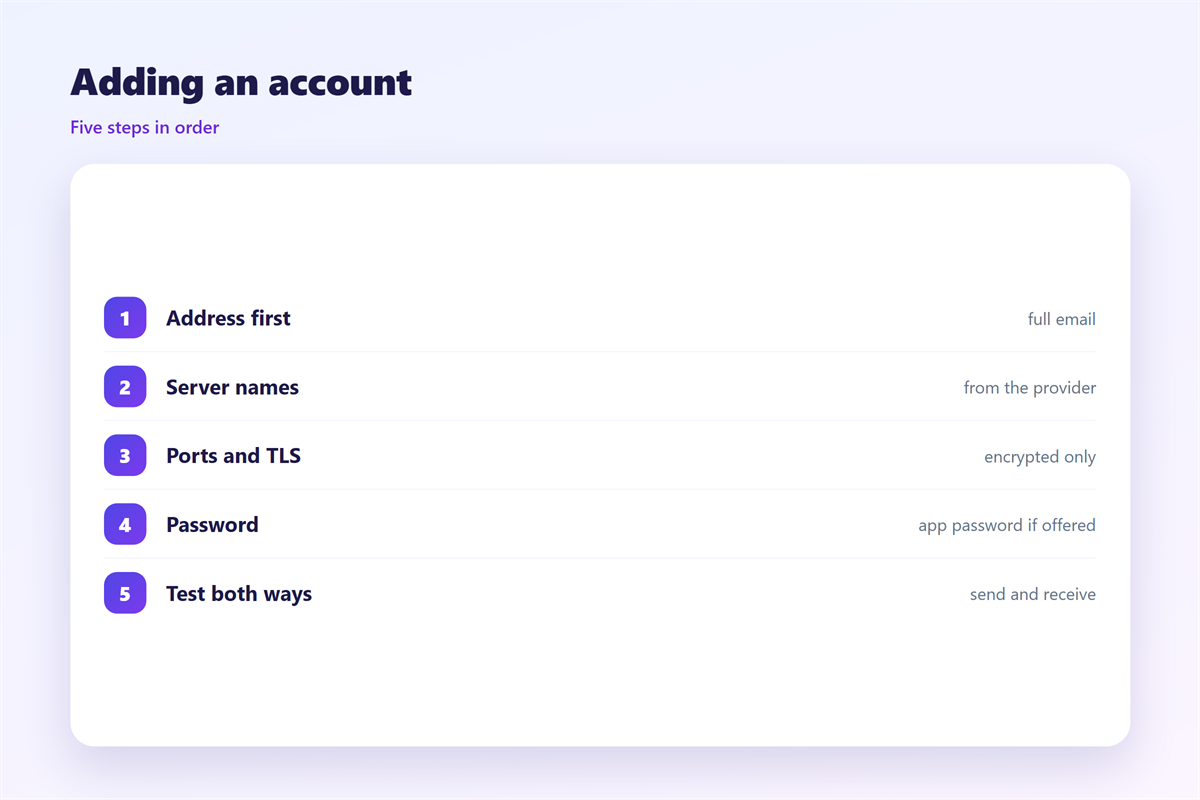
You provide your address, your password, and two server names.
Then you choose ports and a security option for each server.
Get these right and mail flows. Get one wrong and nothing moves.
A careful 邮件账户设置 prevents most sync problems.
This guide lists the values in the order that avoids rework.
Good 邮件账户设置 starts with the provider’s official settings page.
Settings are stored once and used every time the app opens.
A single wrong value is enough to stop all mail.
Most providers document every value you need.
Use that page as the single source of truth.
Do not copy settings from an unrelated provider.
Most clients walk you through these fields in order.
Answer them carefully the first time.
A small mistake here affects every folder.
Keep a note of the values that finally worked.
Server names you must get right
Two servers are involved, and they do opposite jobs.
The incoming server delivers mail to your app.
The outgoing server carries your replies away.
Their names often look similar but are not the same.
邮件账户设置 fails fast when a name is misspelled.
A missing prefix such as mail or imap is a common mistake.
Copy the names exactly from the provider. Do not guess.
One machine can host both roles, and it still needs two entries.
The full picture is explained under 邮件服务器.
The incoming name often starts with imap or pop.
The outgoing name often starts with smtp.
Case does not matter, but spelling does.
A typo returns an error within seconds.
Check the exact spelling against the provider page.
The two names may point to the same machine.
The ports, however, are usually different.
Some providers use an account number as the username.
Ports and encryption
Each server listens on one or more ports.
Port numbers are fixed by convention, not by choice.
Using the wrong port makes the connection hang or fail.
Encryption must match the port. Modern setups use TLS from the start.
If the client asks for SSL and the server wants STARTTLS, sync will fail.
邮件账户设置 depends on matching port and security together.
The common numbers sit in 邮件端口.
How transport encryption works is covered under 邮件加密.
Port 993 is common for secure incoming mail.
Port 465 and 587 are common for secure outgoing mail.
Older ports still work, but they often skip encryption.
Prefer the secure option when the server offers it.
A certificate warning means something is misconfigured.
Never ignore that warning on a mail server.
Two settings usually need the same security choice.
Try the alternate port if the first one is blocked.
Common 邮件账户设置 errors
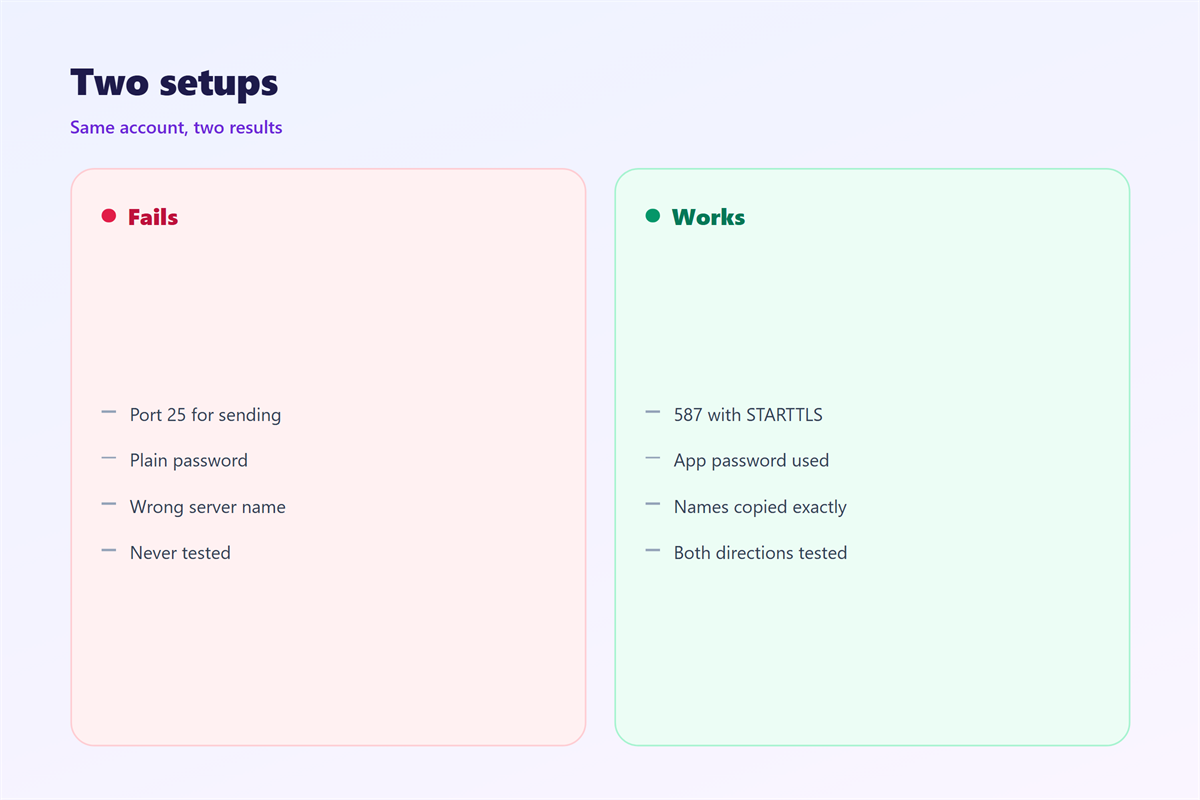
Most failures come from a small list.
The password is wrong, or the old one is still saved.
The account needs an app password that two factor login requires.
The username is the full address, not just the first part.
The sync limit was never lowered, so the first load times out.
Slow 邮件账户设置 is often a timeout, not a real fault.
Poor 邮件账户设置 can look exactly like a server outage.
Checking the error text saves time. It usually names the failing step.
Some clients hide the outgoing setting on a second screen.
Others reuse the incoming password automatically.
If both directions fail, suspect the password first.
If only one direction fails, suspect the port.
A timeout points to the wrong server name.
An authentication error points to the wrong password.
Restart the app after a failed change.
Old settings sometimes stay in memory.
Read the full error, not just the first word.
Check the date on the device before blaming the server.
Testing a new 邮件账户设置
Do not trust a green tick alone.
Send a message to yourself and wait for it to arrive.
Then reply from another account and confirm it lands.
Check the sent folder on the server, not only in the app.
A good 邮件账户设置 passes both directions before you rely on it.
The client itself is described in 邮件客户端.
Every 邮件账户设置 deserves a quick test on day one.
Correct 邮件账户设置 is a five minute job done once.
A test message reveals problems while you are watching.
Send from the app and from the provider website.
Compare the two results before you change anything.
Delete a failed attempt before you start again.
Ask a colleague to send you a message too.
Receiving from a second source proves much more.
Write the working values down for your own records.
Repeat the test after any provider change.
A working account is worth the five minutes.
A few minutes now saves hours of confusion.
FAQ
Should 邮件账户设置 use IMAP or POP3?
IMAP for most people. It keeps folders in sync across devices.
Why does sending fail after receiving works?
The outgoing server is separate. Check its port and encryption again. The password may also differ.
Can I copy 邮件账户设置 between devices?
Yes, the values are the same. Use an app password on each device. Never share a single password everywhere.
What if the provider asks for an app password?
Create one in account security. A normal password will be rejected. Keep the app password private.
References
- IETF RFC 3501: IMAP version 4rev1.
- IETF RFC 3207: SMTP Service Extension for TLS.
- Google: Check Gmail through other email platforms.
评论
还没有评论,来说两句吧。
评论功能已关闭。