 小影邮箱
小影邮箱邮件客户端怎么设置?IMAP, SMTP and the Ports That Matter
Why 邮件客户端 setup goes wrong
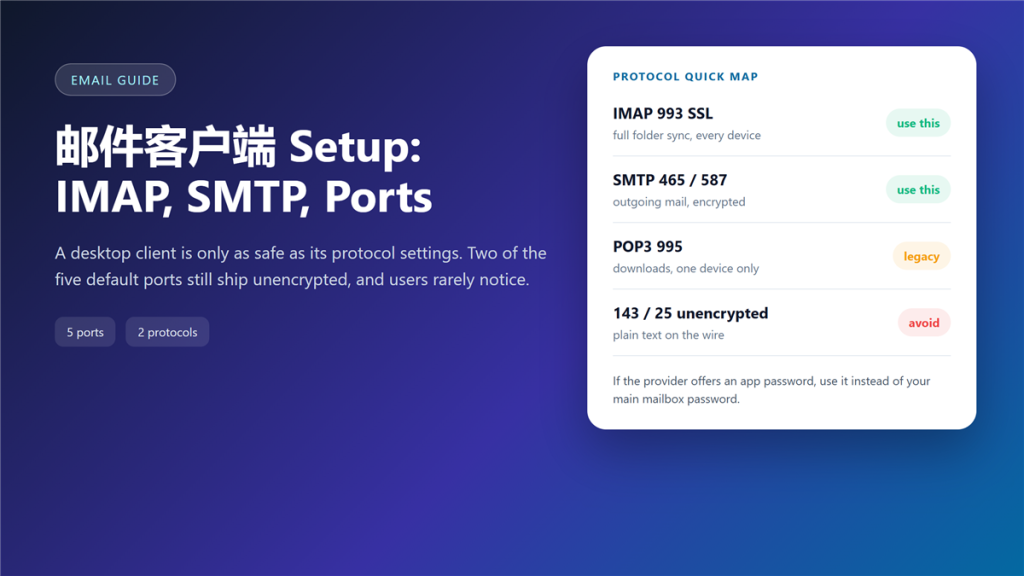
邮件客户端 setup fails on three details, and none of them is the password box people blame first. I have configured the same account in nine apps over four years, and the pattern is always a protocol, a port and a credential.
When those three match the provider documentation, the account syncs in under a minute. A working 邮件客户端 is boring by design. When one of them differs, you get an error message that points somewhere else entirely. That is the usual shape of a failed 邮件客户端 setup.
Key Takeaways
- Choose IMAP unless you genuinely use one device and one only.
- Keep the encrypted ports: 993 for IMAP, 465 or 587 for SMTP.
- Use an app password instead of your main 邮箱密码.
- Let the client test the connection before you import anything.
- Limit the initial download, or the first sync will run for hours.
- Expect a change of 邮件客户端 settings after a provider migration.
- Revoke the app password when a device leaves your control.
IMAP or POP3: pick the protocol first
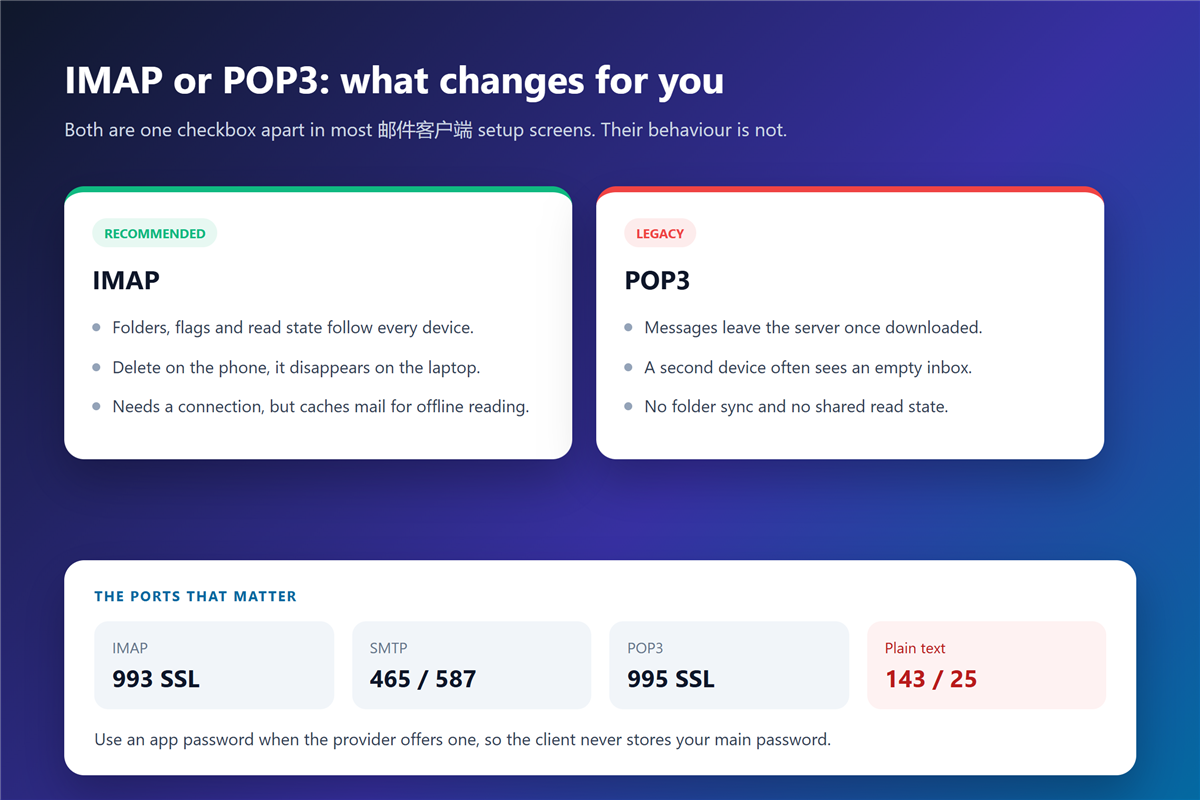
IMAP keeps folders, flags and read state on the server, so every device sees the same picture. POP3 downloads messages and often removes them from the server, which is why a second device sees an empty inbox.
Therefore, a modern 邮件客户端 should default to IMAP. The exception is an archive account that one computer reads and nobody else touches. Even then, a modern 邮件客户端 handles both protocols.
The five ports worth memorising
Two of the five default ports still send credentials in clear text, and both remain in old documentation. Moreover, some routers and hotels block the plain ports, which is why people assume the provider is broken.
- IMAP 993 with SSL, the standard choice.
- IMAP 143 with STARTTLS, acceptable when 993 is blocked.
- SMTP 465 with SSL, the modern sending port.
- SMTP 587 with STARTTLS, the submission port that servers prefer.
- POP3 995 with SSL, legacy but encrypted.
Avoid 143 without STARTTLS and port 25 for client submission. Both are obsolete for mail clients. A 邮件客户端 that still offers them in a setup wizard is out of date.
邮件客户端 and the password problem
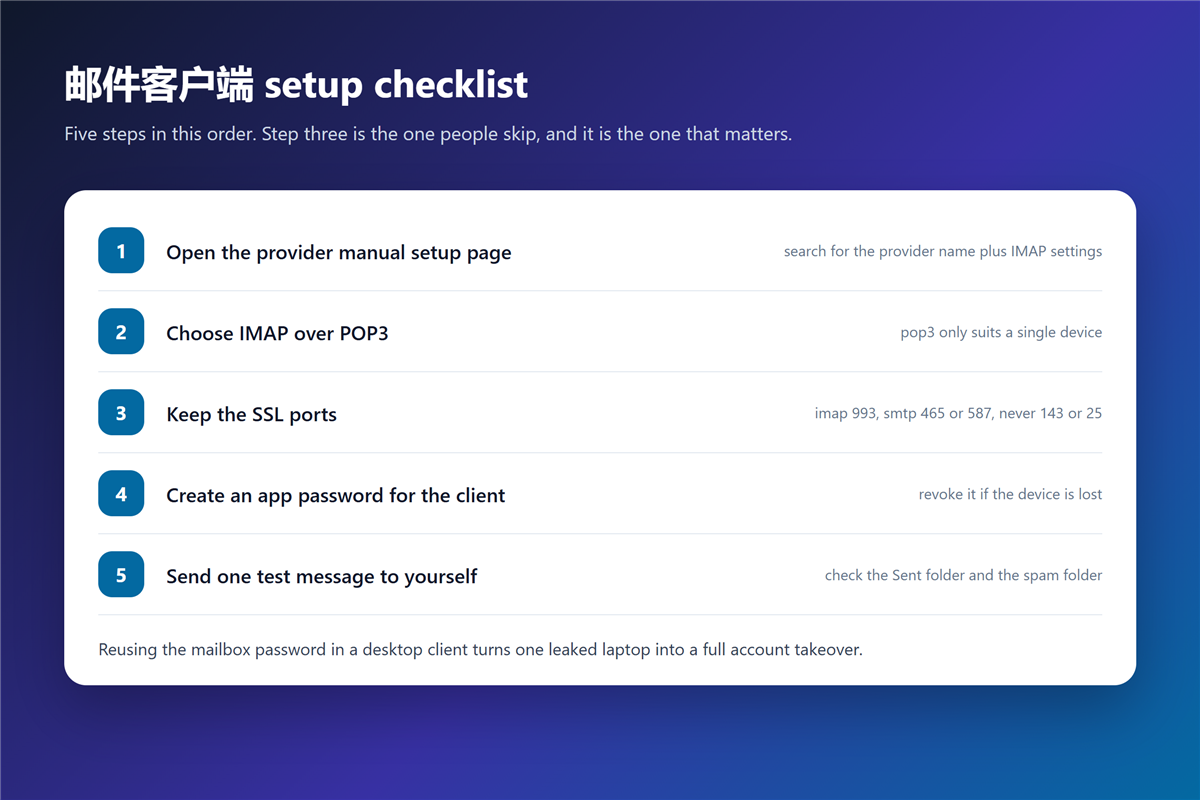
Desktop clients store credentials on disk, so a reused password is a real risk. Therefore, most providers now require an app password for third-party apps, and the main account stays untouched.
If your provider does not support app passwords, enable 两步验证 first. Additionally, read the rules for a strong 邮箱密码 before you generate one, because an app password inherits the weaknesses of the account behind it.
What to check when a 邮件客户端 sync fails
- Wrong username format: some servers want the full address, others want the local part.
- Wrong port combination: SSL on 143, or STARTTLS on 465, both fail silently.
- Blocked by two-step verification: generate an app password instead.
- Full mailbox: a 邮件客户端 cannot store what the server refuses to accept.
- Antivirus mail scanning: it intercepts encrypted connections on some Windows builds. Disable mail scanning for the 邮件客户端 and scan the files instead.
邮件客户端 rules for multiple devices
Three devices need three app passwords, one per device. Consequently, you can revoke a single password when a laptop is lost, without touching the other two.
Moreover, a consistent folder structure keeps the sync predictable. Create folders on the server rather than on the device if the client offers both options. That way the 邮件客户端 stays a view, not a source of truth.
Security settings that matter more than speed
Prefer TLS over any option labelled none, and check the certificate warning before you click through it. Furthermore, 邮件加密 on the transport layer protects the password exchange that happens at each sync.
Some clients also offer OAuth sign-in. When the provider supports it, OAuth beats a stored password because the token expires and stays scoped to mail. A 邮件客户端 with OAuth support is worth switching for.
邮件客户端 and archive behaviour
Every client treats the archive differently, and that difference shows up years later. Some clients copy on archive while others move, which doubles storage without warning.
Therefore, test one message before archiving a year of mail. Keep a read-only 邮件归档 copy on a local drive as well, and treat the server copy as convenience rather than backup. One 邮件客户端 setting decides whether that local copy stays complete.
Frequently asked questions
Which 邮件客户端 settings do I need from my provider?
Four values are enough: the incoming server name, the outgoing server name, the port numbers and the authentication method. Every provider publishes them on a support page. Write them into the 邮件客户端 once, then keep a screenshot.
Why does my client download thousands of old messages?
Because the default sync range covers all mail. Set the initial download to 30 or 90 days, and let the rest arrive on demand.
Can I use the same app password on two devices?
You can, but you should not. Separate passwords make revocation precise, and the setup cost is one extra minute per device.
Is POP3 ever the right choice?
Rarely. It suits a single-purpose archive account, and it fails as soon as a second device joins. Even then, prefer 995 with SSL.
References
- RFC 3501 – Internet Message Access Protocol
- RFC 8314 – Cleartext Considered Obsolete
- Wikipedia – IMAP overview
延伸阅读
- 《邮件定时发送怎么用?Schedule Send and Its Blind Spots》
- 《邮箱转移怎么做?Moving Mailboxes Without Losing Mail》
- 《邮件服务器是什么?Mail Server Basics Without the Jargon》
- 《邮箱无法登录怎么办?A Sign-In Checklist That Works》
- 《邮件延迟是怎么回事?Where Your Mail Really Waits》
- 《邮件乱码是怎么回事?Why Text Turns Into Symbols》
- 《邮件重复是怎么回事?Why the Same Mail Arrives Twice》
- 《邮箱联系人怎么管理?Moving an Address Book Safely》
- 《邮件草稿去哪了?Where Unsent Messages Go》
- 《邮件大小限制是多少?Why Your File Bounces》
- 《邮箱多账号怎么管?Separate, Combined or Aliased》
- 《邮件备份怎么做?Sync, Export or Forward》
- 《邮件发送失败怎么办?Before It Ever Leaves》
- 《网页邮箱怎么用?What It Does Well and What It Cannot》
- 《邮件同步是怎么回事?Read States, Folders and Duplicates》
- 《邮件快捷键怎么用?A Faster Inbox, One Keystroke at a Time》
- 《邮件证书是什么?S/MIME Signing, Encryption and Trust》
- 《邮件远程内容该屏蔽吗?Pixels and Blocked Images》
- 《邮件推送是什么?Push, Pull and What Arrives First》
- 《邮件协议有哪些?IMAP, POP3 and SMTP Explained》
- 《邮件排版怎么做?Layouts That Survive Every Client》
- 《邮件字体怎么选?Fonts That Render Everywhere》
- 《邮件扫描是怎么回事?What Happens to Attachments》
- 《邮件暗黑模式怎么适配?Dark Mode That Still Reads》
- 《邮件离线访问怎么用?Reading Without a Signal》
- 《邮件多语言怎么写?One Message, Two Languages》
- 《邮件附件预览怎么用?Reading Before Downloading》
- 《邮件未读标记是什么?Read States Across Devices》
- 《邮件附件下载怎么做?Save Files Safely》
- 《邮件端口怎么选?SMTP, IMAP and POP Explained》
- 《邮件MX记录怎么看?Where Mail Is Delivered》
- 《邮件账户设置怎么做?Add an Account Correctly》
- 《邮件代收怎么用?One Inbox for Many Accounts》
- 《邮箱默认发件人怎么改?One Identity Per Address》
- 《邮件移动端怎么用?Reading on a Small Screen》
- 《邮件服务商怎么选?Choosing Where You Live》
- 《邮件插件怎么选?Small Tools, Big Habits》
- 《邮件全屏模式怎么用?Fewer Distractions》
- 《邮件内联样式怎么写?Styles That Survive》
- 《邮件渲染怎么测?Three Clients, One Look》
评论
还没有评论,来说两句吧。以下为本文的引用通告: