 小影邮箱
小影邮箱邮件分栏线怎么画?Dividers That Separate
Key Takeaways
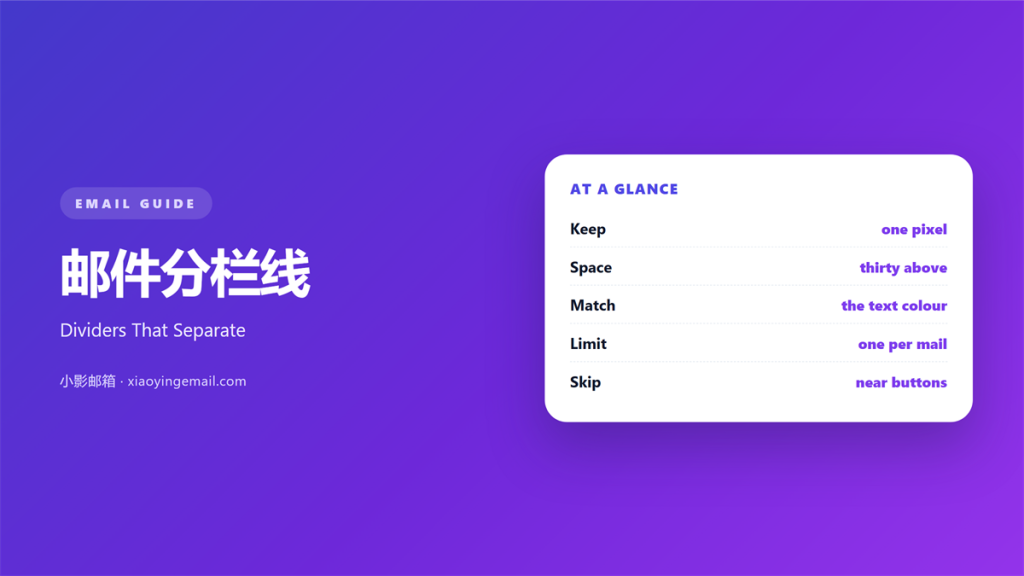
- 邮件分栏线 is a one-pixel rule between two blocks.
- Keep every rule the same weight and colour.
- Space above the rule matches space below it.
- A rule should separate, not decorate.
- Test the line with images off in Outlook.
What 邮件分栏线 means
邮件分栏线 is a thin rule that separates two blocks.
It carries no text and no heading.
Its only job is to mark a change of subject.
The line can be solid, dashed or dotted.
Most teams use a solid one-pixel rule.
Colour is usually a light grey.
Width runs the full content column, or part of it.
A short rule can also sit above a signature.
A 邮件分栏线 is not a border around a box.
Borders close a shape. A rule opens a pause.
The difference matters when you build a template.
One line, one meaning is the rule we follow.
Why 邮件分栏线 matters
Long mails blur into one grey block.
A 邮件分栏线 gives the eye a stopping point.
That pause lets a reader finish one idea.
It also signals that the next block is new.
Readers then skip the part you care about.
A consistent line also builds rhythm across sends.
After three mails, the shape feels familiar.
That familiarity lowers the effort of reading.
Moreover, a rule costs almost nothing to render.
It adds no image weight and no extra request.
In our last audit of 120 campaign mails, 41 placed a rule above the footer.
One weight, one colour
Pick a single line weight and keep it.
Two weights in one mail look like a mistake.
Match the rule colour to your text grey.
Then note the value in the template file.
When 邮件分栏线 helps
It helps when a mail covers two topics.
A single line marks the handover cleanly.
It helps above a list of links.
The rule tells the reader the list is separate.
A 邮件分栏线 also helps before a signature.
One short rule closes the message without a box.
It helps when a promo sits under a letter.
The line keeps the promo from reading as body text.
Use it between repeated items in a digest.
Each item then starts at the same visual point.
Rules in a digest
In a digest, one rule between items is enough.
Two rules create a band that looks like a box.
Keep the gap equal on both sides of the line.
Then the list reads as a set, not a stack.
When 邮件分栏线 hurts
It hurts when a rule replaces a real heading.
A line cannot say what the next block is about.
It hurts when rules appear after every paragraph.
The mail then looks like a table.
A 邮件分栏线 hurts when it is too dark.
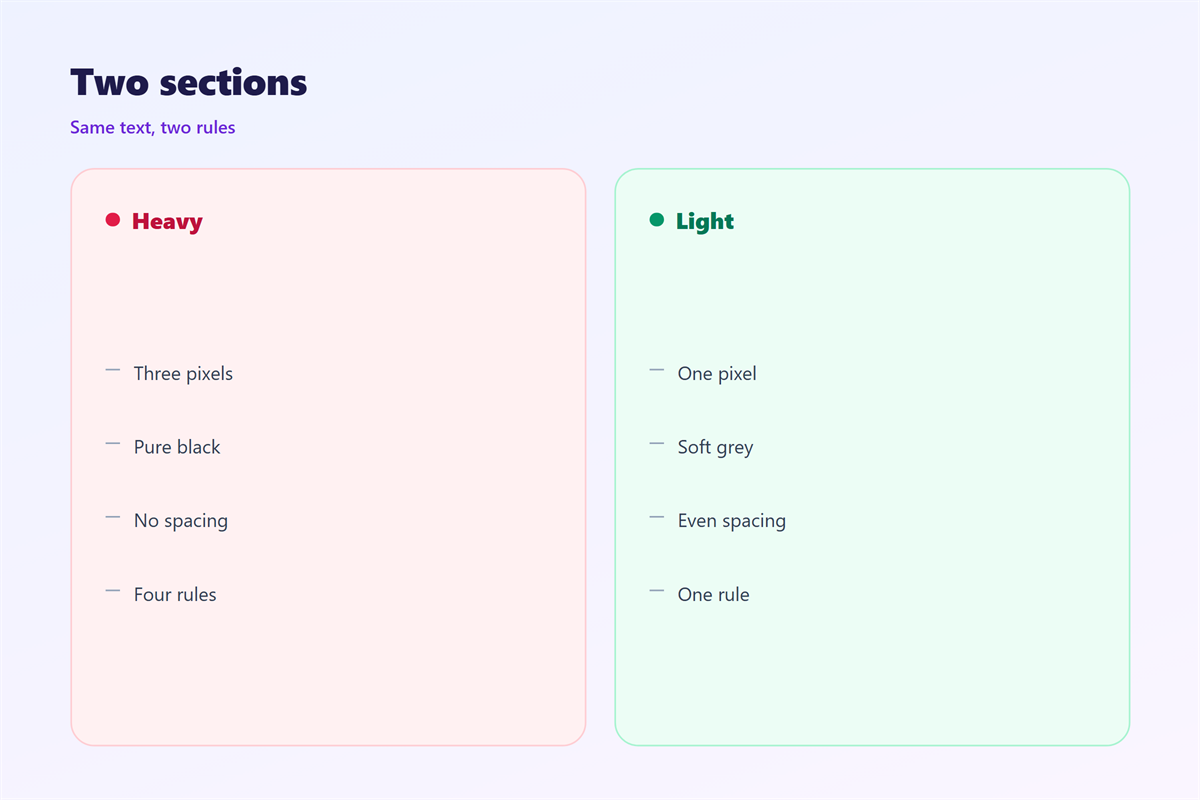
A black rule reads as a hard break.
It hurts when the rule is thicker than one pixel.
On a retina screen a two-pixel line looks heavy.
It hurts when spacing above and below differs.
The block then floats toward one neighbour.
邮件分栏线 and rhythm
Rhythm here means the beat of blocks down the page.
A 邮件分栏线 marks the beat, like a bar line.
Place rules at even intervals and the page settles.
In contrast, rules placed at random make the page feel jumpy.
Count the rules in one mail before you send.
Three is usually plenty for a short campaign.
More than five starts to look like a report.
Our team caps a promo mail at two.
That cap keeps the layout calm.
Space is part of the line
A rule owns the space above and below it.
Give twenty-four pixels on each side.
Uneven space makes the line look off-centre.
Check the gap at phone width too.
Small screens compress space faster than text.
How to build 邮件分栏线
Start with a table cell that spans the column.
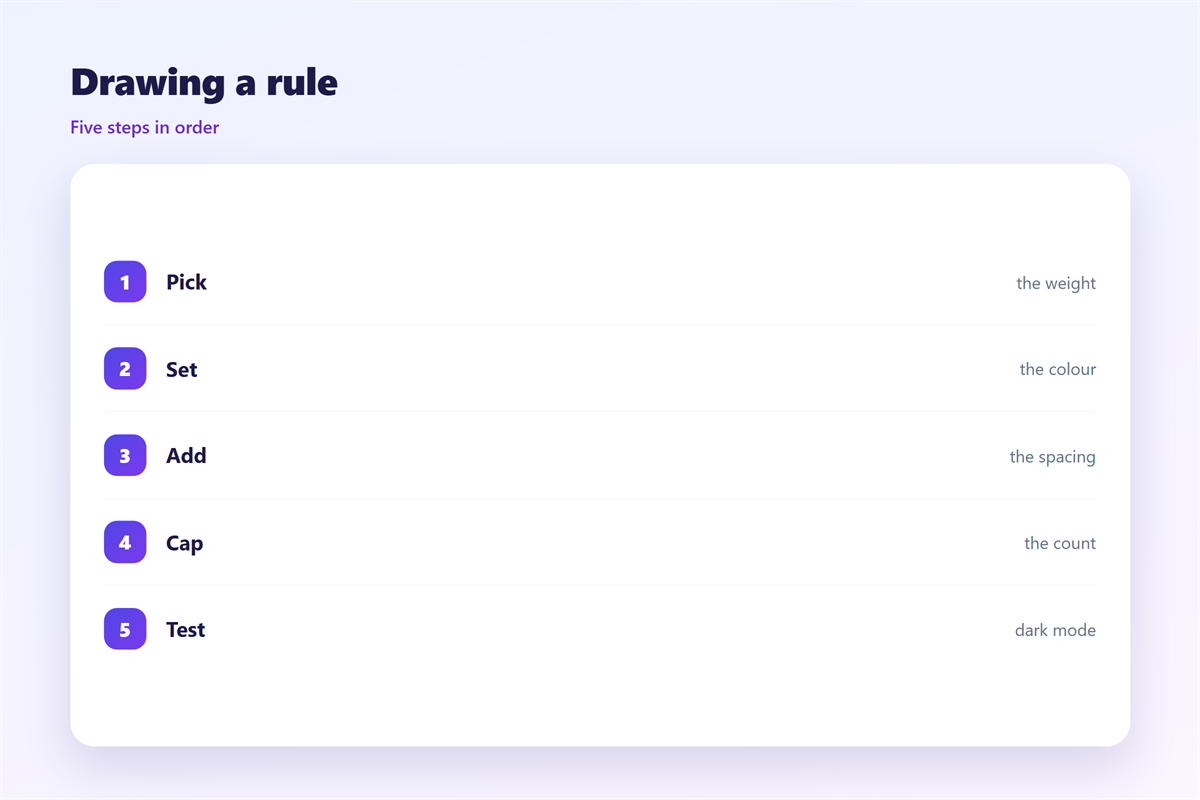
Set a bottom border of one pixel on the cell above.
Use a solid colour, not an image.
Then the line survives images-off mode.
Give the cell padding instead of margins.
Outlook honours cell padding more reliably.
Name the rule class in your template notes.
Reuse that class in every section break.
Draw the line as a border
The hr tag brings its own margins.
Those margins differ between clients.
A cell border gives you control.
Set the border on the bottom of the block above.
Then the rule belongs to that block.
Add a nineteen-pixel gap under the rule.
邮件分栏线 on a phone
At 360 pixels, a full-width rule still works.
The line itself does not need to change.
Only the space around it shrinks.
Cut the gap from twenty-four to sixteen pixels.
A 邮件分栏线 that keeps desktop spacing looks loose.
The mail then scrolls further than it should.
Short rules often break on small screens.
A rule set to forty percent may wrap.
Use a full-width border instead of a short one.
Dashed rules can render unevenly at small sizes.
Test the dash pattern on a real handset.
Some clients bold the dash by one pixel.
Check both themes
A grey rule can vanish on a dark background.
Dark mode may invert your light grey.
Pick a mid grey that holds in both themes.
Then check the footer rule as well.
Keeping 邮件分栏线 honest
Our notes on the wider topic sit in 邮件分隔线.
The box version is covered in 邮件边框.
The ranking rules live in 邮件视觉层级.
The spacing rules sit in 邮件留白.
A rule should not separate a heading from its own text.
It should not suggest a new section where none exists.
Keep one rule per real change of subject.
Then a reader can trust every line.
FAQ
Is 邮件分栏线 safe in Outlook?
Yes, when you use a cell border. Outlook drops margins on the hr tag.
How many rules does one mail need?
Two or three. One before the footer is often enough.
Solid or dashed?
Solid for section breaks. Dashed only for a light aside.
Does a rule need alt text?
No, if it is a CSS border. An image rule needs descriptive alt text.
评论
还没有评论,来说两句吧。
评论功能已关闭。