 小影邮箱
小影邮箱邮件图片压缩怎么做?Lighter Images, Same Look
Key Takeaways
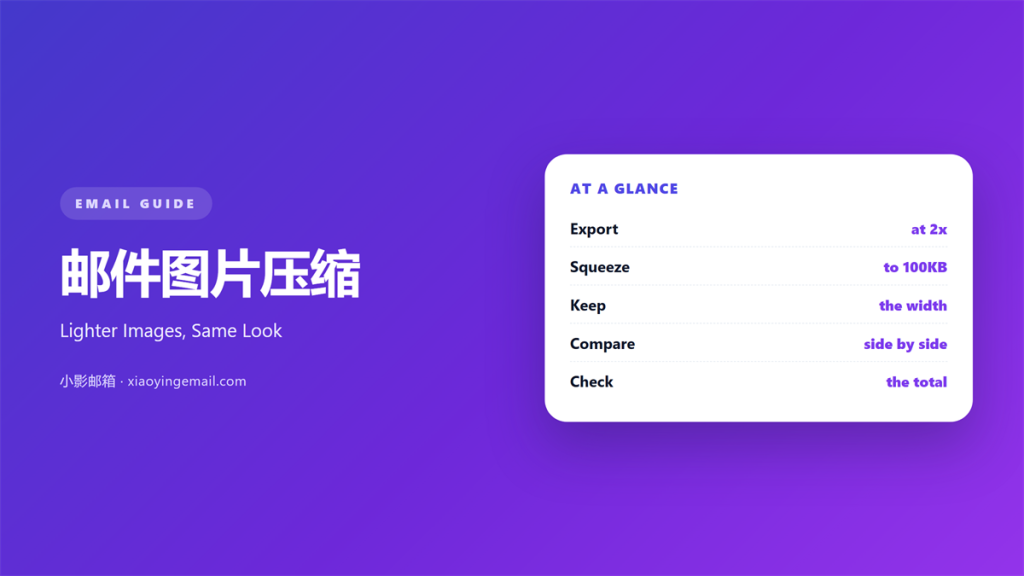
- 邮件图片压缩 cuts file weight without changing the look.
- Export at twice the width, then squeeze to 100 KB.
- A heavy hero image delays the first screen.
- Check the weight after every export.
- Keep the original file somewhere else.
What 邮件图片压缩 means
邮件图片压缩 means making a file smaller before it is sent.
The pixels stay. The bytes fall.
Most of the saving comes from removing hidden data.
A camera writes far more detail than a screen shows. Most of it never reaches the eye.
Compression throws that extra detail away.
The reader sees the same picture.
The inbox moves it faster. That speed shows up on a slow network.
A 邮件图片压缩 step belongs in every export.
It takes one pass through a tool.
The tool can be local or online. Both let you set a target weight.
Either way, check the result by eye.
A small file that looks wrong is not a win.
Why 邮件图片压缩 matters
Weight decides when the mail appears.
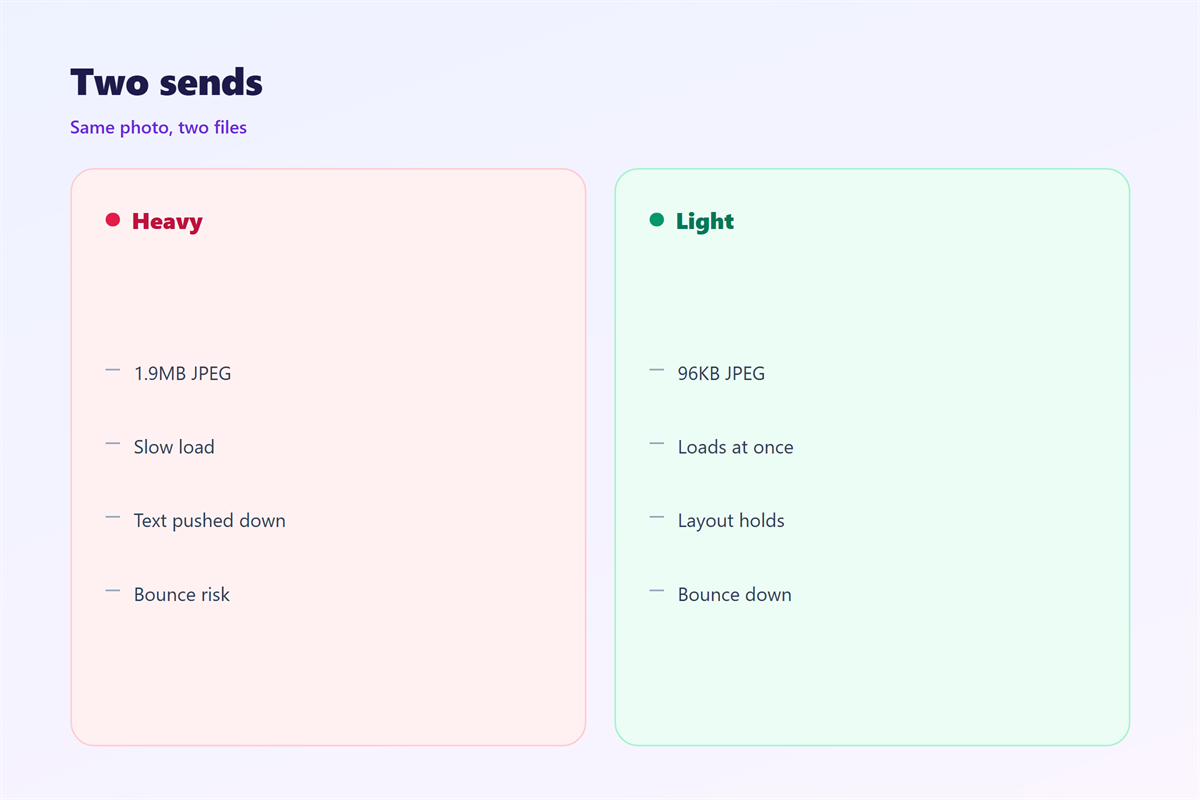
A 2 MB hero image stalls on a weak network.
Our team cut one hero from 1.9 MB to 96 KB.
The load time fell from 4.1 seconds to 1.2.
The picture looked the same on a phone.
A 邮件图片压缩 pass also protects the send.
Gmail clips a mail above 102 KB.
Clipping hides your footer and your tracking. The reader sees a cut-off mail.
Many inboxes also filter on total size.
So weight affects delivery, not just speed.
It also affects the reader’s data bill.
Where the bytes hide
Photos carry metadata, thumbnails and colour profiles.
A tool strips most of that first.
Then it reduces the colour detail.
Most of the loss is invisible on a screen.
When 邮件图片压缩 helps
It helps when the mail carries several images.
Five images at 300 KB add up fast.
It helps when the audience is on mobile data. A data plan has a limit.
A lighter mail costs them less.
A short pass also helps a template library.
One small file serves a hundred sends.
It helps when the image is a background.
A background loads before the text is read.
Use it on every export, not just the big ones.
Small habits prevent big files. Set the export preset once and reuse it.
Keep the ratio, change the weight
Crop to the size you will show.
Then export at twice that width.
Resize down before you compress.
Compressing a huge file wastes time and quality.
When 邮件图片压缩 hurts
It hurts when the image carries small text.
Compression smears thin letters first. Those letters carry the message.
It hurts when the file is already small.
A second pass adds artefacts for no gain.
A hard squeeze can blur a logo edge.
It hurts when the tool was set to maximum.
Skin tones then turn patchy.
It hurts when nobody checks the result.
A grey band on a gradient is easy to miss.
Also, a lost original cannot be recovered.
邮件图片压缩 and speed
Speed here means the time to the first readable line.
Text should arrive before pictures. That order keeps the reader informed.
So the layout must work without images.
A compressed image helps that goal.
However, size is only half the story. The image dimensions matter as well.
The server and the reader’s connection matter too.
Our team tests on a throttled connection.
That test shows the real delay.
A 邮件图片压缩 pass shortens it by seconds.
Measure the file, not the canvas
Canvas size tells you little.
Open the file and read the weight.
Aim under 100 KB for a hero.
Aim under 40 KB for an icon.
Then compare two exports side by side.
How to build 邮件图片压缩
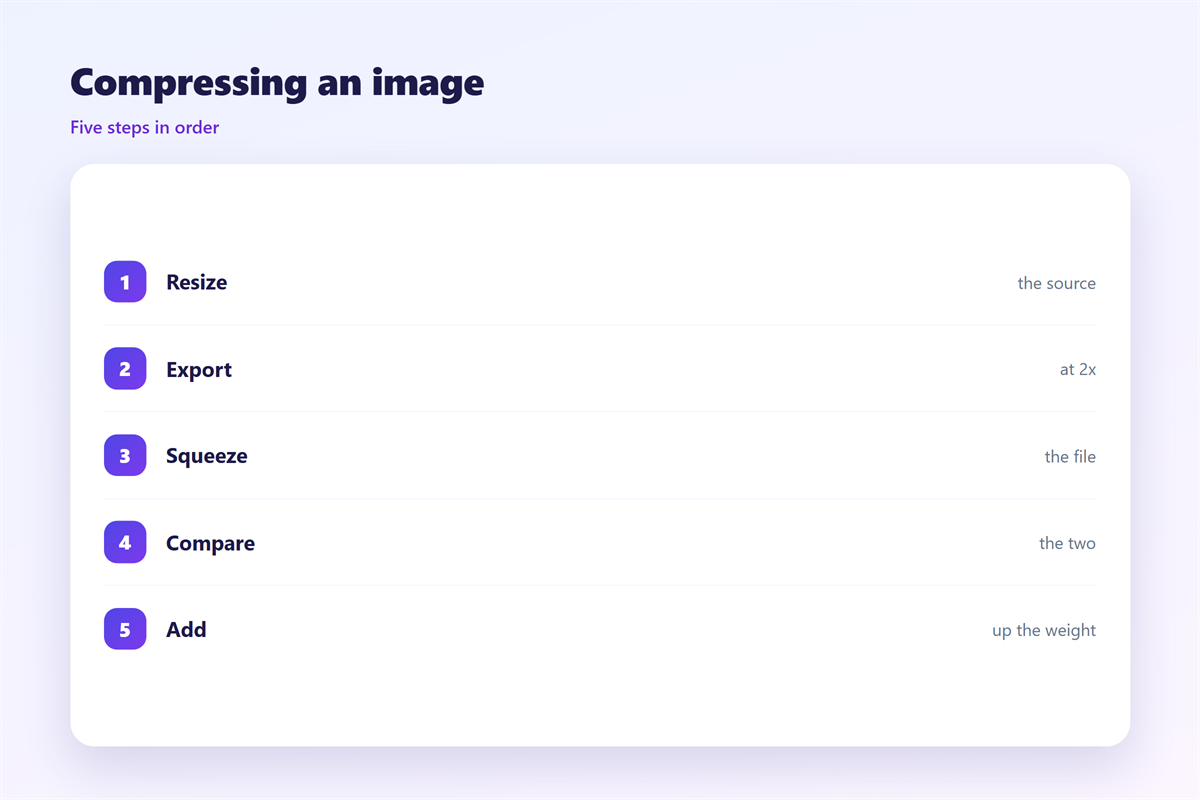
Start with the largest version you have.
Crop it to the shape you need.
Export at twice the display width.
Convert it to JPEG or WebP. JPEG is the safer default.
Set the quality around 75 percent.
Check the weight and the look.
Lower the quality in small steps.
Stop when the eye stops noticing.
A short checklist
Name the file by size and use.
Keep the original in a folder.
Record the weight in the template notes.
Repeat the step for every image.
Then export the whole mail.
Check the total weight before sending.
邮件图片压缩 on a phone
A phone is where weight hurts most.
A slow connection makes every kilobyte visible.
A 邮件图片压缩 file appears while a heavy one loads.
Keep the first image small. It sets the tone for the rest.
The first screen should open in under two seconds.
Test with the network set to 3G. Then switch to 4G and compare.
Then test again on a real device.
A retina screen shows soft edges quickly.
So do not over-compress a photo of a face.
Keep the hero near 100 KB and the rest lower.
A wide banner is the usual offender.
Crop it before you compress it.
Watch the total
Add up every image in the mail.
A total above 600 KB is a warning.
Cut the least useful image first.
Then send a test to yourself.
Keeping 邮件图片压缩 honest
The display rules sit in 邮件图片.
The width maths is covered in 邮件图片尺寸.
The file choices appear in 邮件附件格式.
The hard caps live in 邮件大小限制.
A 邮件图片压缩 pass should never hide a defect.
Look at the photo at full size once.
Then check it on a phone screen.
Finally, keep the original file forever.
FAQ
Does 邮件图片压缩 change the file type?
Only if you convert it. A JPEG stays a JPEG.
What weight should a hero image have?
Under 100 KB. Most phones load that in a second.
Can I compress a GIF?
It will lose frames. Use a static image instead.
Is WebP safe in mail?
Not everywhere. Keep a JPEG fallback.
评论
还没有评论,来说两句吧。
评论功能已关闭。