 小影邮箱
小影邮箱邮件预览文本怎么写?The Line After the Subject
Key Takeaways
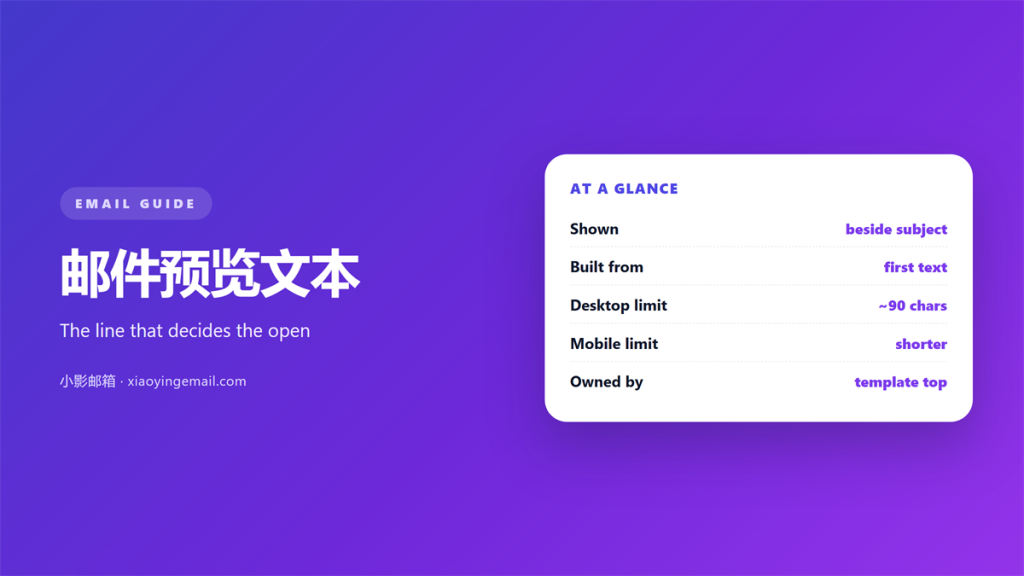
- 邮件预览文本 is the snippet an inbox shows beside the subject line.
- Gmail and Outlook pull and cut it differently, so a good line has to survive both.
- Most templates waste the space on “view in browser” or a repeated greeting.
- Treat the preview as the sentence that continues the subject, not as a second subject.
- Two minutes with a seed list beats any rule of thumb about length.
What 邮件预览文本 actually is
邮件预览文本 is the snippet an inbox displays next to the subject line. Most clients build it from the first block of readable text, which is why templates that open with a logo image often show nothing useful at all. I spent a week sending variants to a seed list of nine inboxes and logged exactly what each one displayed.
The result was sobering. Four of the nine showed a different snippet for the same message, and two showed the preview only after the subject was already truncated. In other words, the line you carefully typed may not be the line your reader sees.
Nothing about this is exotic. The field is simply the first text the client can find, which makes the top of your template the real owner of the 邮件预览文本.
How each inbox renders the preview
Every provider decides for itself how much text to pull and where to cut it, so the same 邮件预览文本 can appear intact in one client and half-finished in another. Fortunately, the differences follow a pattern you can plan around.
Gmail
Gmail reads the first meaningful text and typically shows around 90 to 100 characters on desktop. Notably, it skips image-only headers and keeps looking, which is why a hidden preheader line for your 邮件预览文本 works there.
Outlook
Outlook cuts sooner on desktop and later on mobile, and it is less tolerant of hidden text. Consequently, a preview that leans on invisible characters can collapse into an empty line.
Why 邮件预览文本 gets ignored
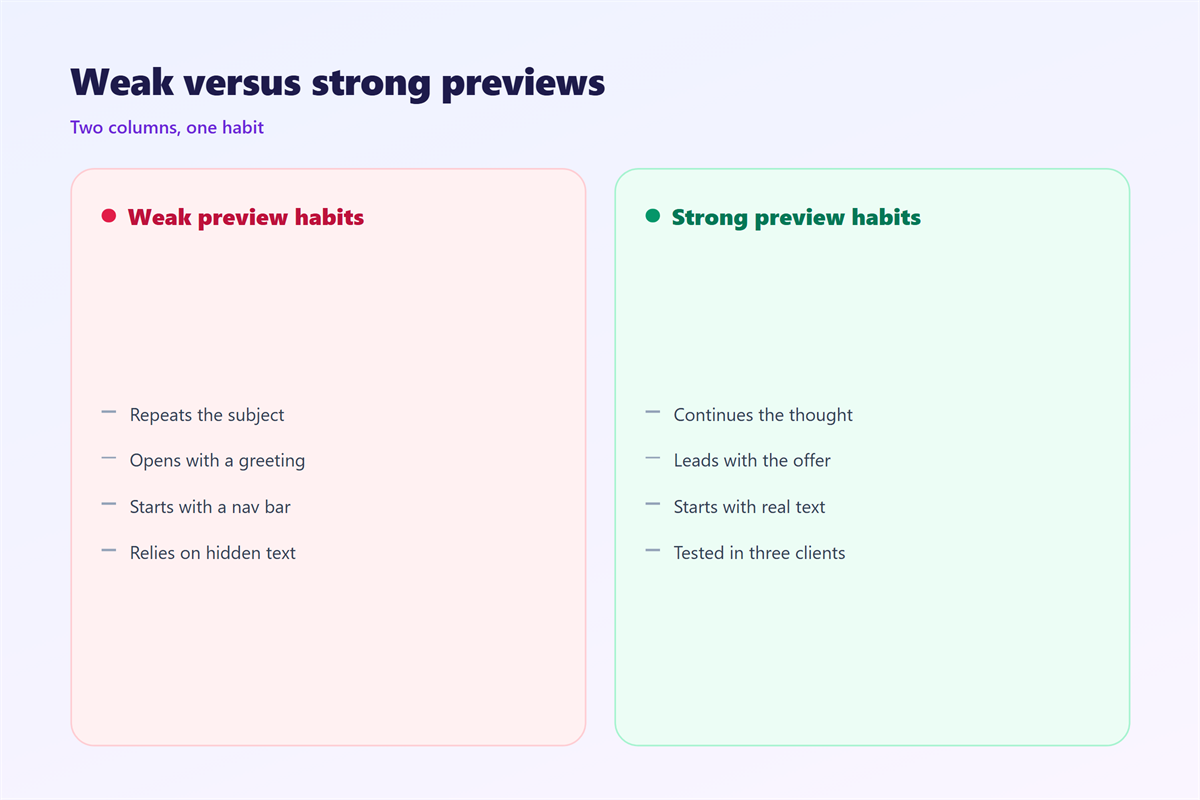
The space is wasted for three predictable reasons. First, the template places a navigation bar or a “view in browser” link at the very top, where it becomes the 邮件预览文本. Second, the opening paragraph repeats a greeting the subject already implied. Third, nobody on the team owns the field.
Moreover, the cost is invisible. A weak 邮件预览文本 does not bounce and does not raise a complaint. It quietly reduces how many people open the message, which is the hardest kind of loss to notice.
Five rules for a 邮件预览文本 that works
A useful preview is not a second subject line. Treat it as the sentence that finishes the thought the subject began.
- Extend the subject instead of repeating it.
- Front-load the specific value or the deadline.
- Keep it near 90 characters so the ending is not cut.
- Avoid dates that turn stale before the mail is read.
- Never let “view in browser” take the first line.
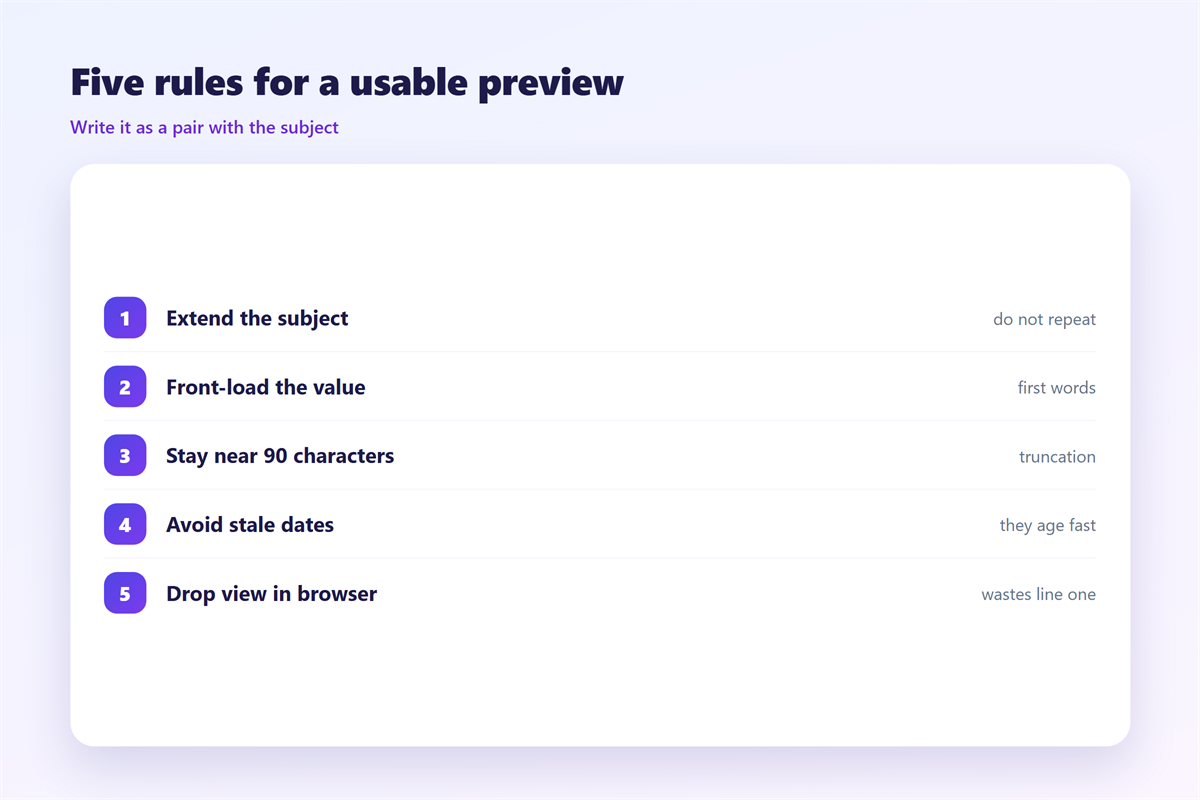
The rules are cheap to apply and easy to forget. I keep them in a short checklist next to the send button, because the field is invisible in most editors. Our notes on 邮件标题 cover the line above it, and the two should be written as a pair.
Where 邮件预览文本 goes wrong
Three failures show up again and again. The most common is duplication, where the preview repeats the subject word for word. The second is filler text that describes the template instead of the message.
A third failure is subtler. When the first paragraph is a personal greeting, the preview reads as though the message were addressed to a crowd, and the reader’s eye slides past it. As a result, the most valuable line in the message is spent on a formality.
On balance, the fix is structural: move the greeting below the first useful sentence, and let the top of the template carry the message.
Testing 邮件预览文本 before you send
The only reliable test is to look at real inboxes. Send to a seed list that covers at least one Gmail account, one Outlook account and one mobile client, then read the 邮件预览文本 the way a stranger would. It takes minutes and removes most of the guesswork.
I keep a short note of what each client showed, because the same wording behaves differently across providers.
Build a seed list
A seed list is a handful of addresses you control. Five is enough to start, and the point is coverage rather than volume.
Check the narrow width
Mobile clients truncate earlier than desktop. Therefore, read the preview on a phone as well, because a line that fits on a monitor can lose its point on a small screen.
Once the wording holds up, the rest of the send follows the same discipline described in our guide to 邮件营销. If placement is also a worry, the signals in 邮件投递率 explain how to tell an inbox from a spam folder, and 垃圾邮件 covers what happens when the filter disagrees with you.
FAQ
Does 邮件预览文本 affect deliverability?
Not directly. Filters judge the message as a whole. However, a clearer preview lifts opens, and engagement is one of the signals that reputation is built from.
How long should it be?
Aim for about 90 characters of 邮件预览文本. Anything beyond that is often cut, and the words at the end are the ones you lose first.
Can I hide it?
Many senders use hidden text at the top of the body to control the 邮件预览文本. It works in Gmail but is unreliable elsewhere, so I would not build a template on it alone.
Does it show on mobile?
Yes, and it is usually shorter there. Test on a phone, because the truncation point moves.
References
延伸阅读
- 《邮件暗黑模式怎么适配?Dark Mode That Still Reads》
- 《邮件阅读窗格怎么用?Read Faster Without Mistakes》
- 《邮件AB测试怎么做?Test Two Subject Lines》
- 《邮件主题行怎么写?Get the Message Opened》
- 《邮件封面怎么做?The First Image》
- 《邮件测试怎么做?Send Before You Send》
- 《邮件标题党怎么避?Titles Without Tricks》
- 《邮件首屏怎么设计?The First Screen》
- 《邮件渲染怎么测?Three Clients, One Look》
评论
还没有评论,来说两句吧。
评论功能已关闭。