 小影邮箱
小影邮箱邮件远程内容该屏蔽吗?Pixels and Blocked Images
Key Takeaways
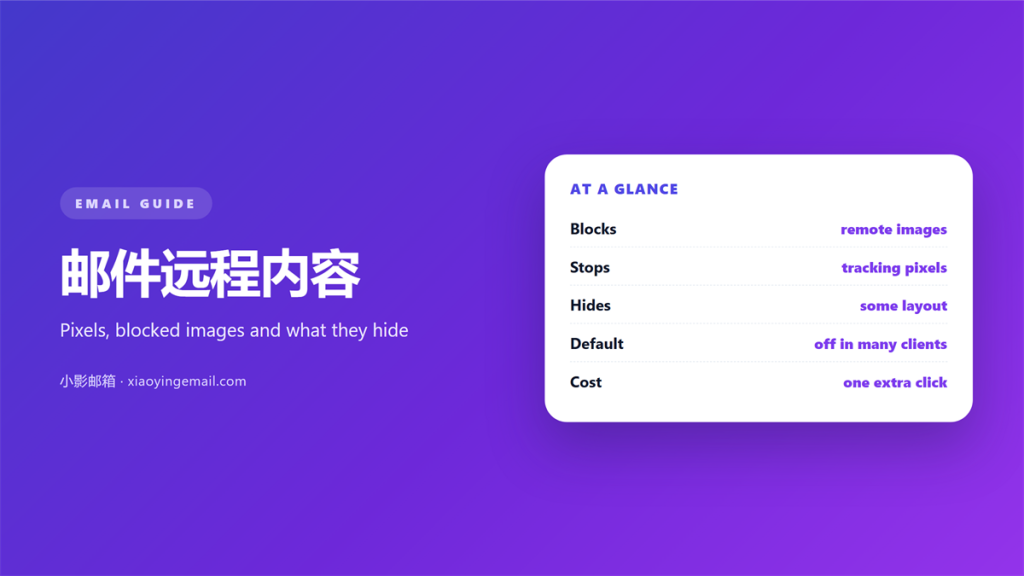
- 邮件远程内容 is any image or asset that loads from a server when you open a message.
- Blocking it stops the tracking pixel but can hide the part of the message that matters.
- Most clients block remote images by default, and the sender learns nothing until you allow them.
- Allow the senders you trust, and keep the default for everyone else.
- The setting is per client, so check the phone, the desktop and the web view separately.
What 邮件远程内容 actually is
邮件远程内容 is anything the message pulls from another server after it arrives. A logo, a photo and a tracking pixel all qualify, and they look identical to the client. The message itself is usually tiny, because the pictures live elsewhere and are fetched only when needed.
This is why blocking the content also breaks the tracking. When images never load, the server never sees a request, and the sender learns nothing about your open. I tested this with a message of my own, and the difference between allowed and blocked was the difference between a log entry and silence.
In other words, 邮件远程内容 is the invisible thread that connects an opened message back to the machine that sent it.
How remote images get loaded
The way an image is fetched decides what the sender can see, and the behaviour varies by client. Fortunately, the patterns are easy to recognise once you know what to look for. The first question with any message is simply whether its 邮件远程内容 will load at all.
The default block
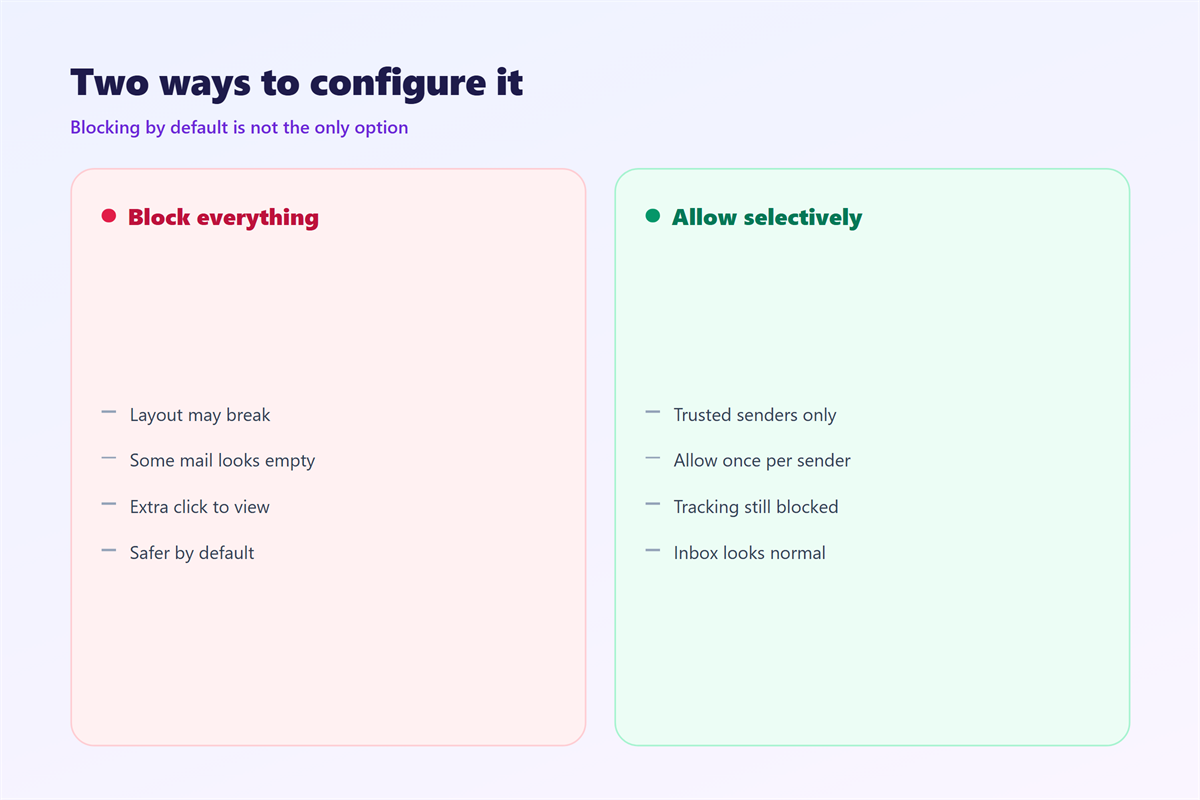
Most clients block remote images until you allow them, which shows a warning bar at the top of the message. Therefore, a first-time sender often sees a blank layout instead of a design, and the tracking request never fires.
Proxy loading
Some providers fetch the images through their own servers instead of yours. Notably, the proxy hides your address, but the sender may still register a load, which muddies the meaning of 邮件远程内容 signals.
Why 邮件远程内容 tracking matters
A tracking pixel is just a one-pixel image, and it is indistinguishable from a logo in the markup. That single fact is why the setting matters for privacy, and why the same switch that protects you can also spoil a newsletter.
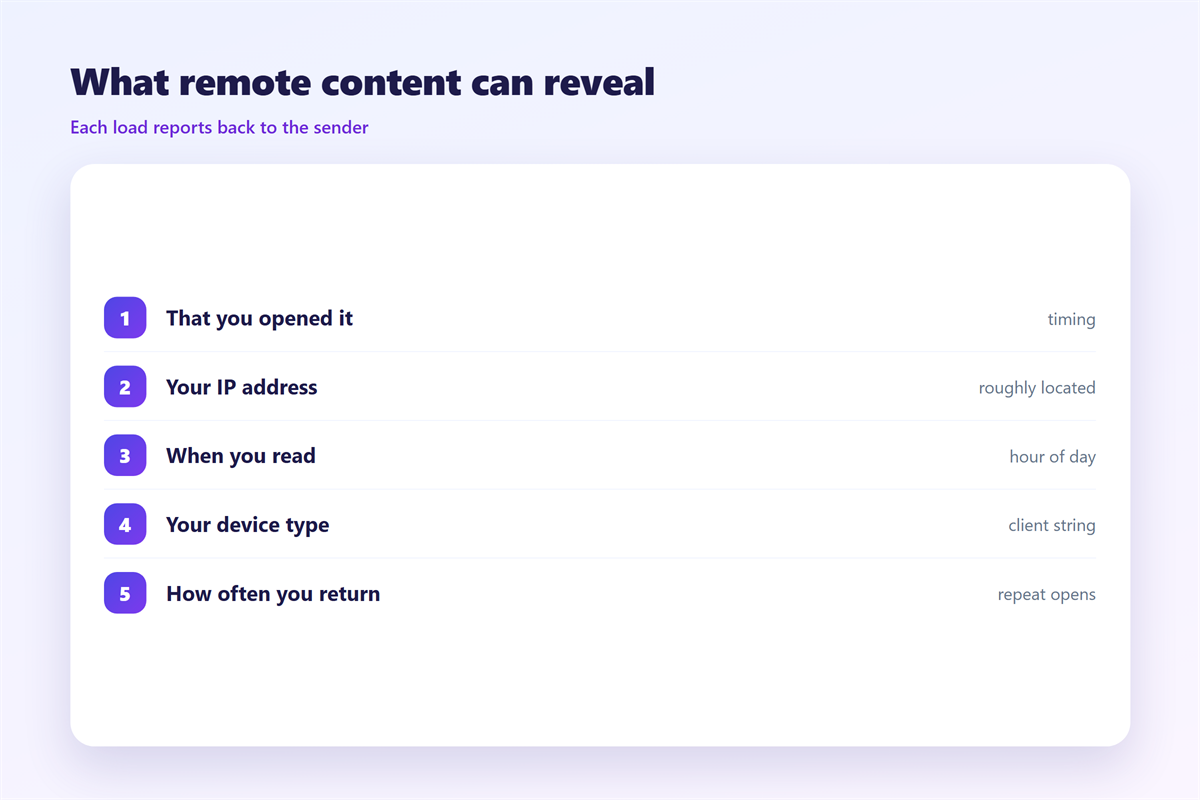
Moreover, a leaked request tells the sender more than that you opened the message. It can reveal when you read it, roughly where you were, and which device you used. Furthermore, that data often feeds a profile that follows you across future sends, so one allowance can echo for a long time. Therefore, allowing 邮件远程内容 is a privacy decision, not a layout preference.
Five rules for handling 邮件远程内容
Treat the setting as a default you keep, not a habit you toggle. This is the routine I follow.
- Keep remote images blocked by default on every device.
- Allow 邮件远程内容 only for senders you recognise and trust.
- Read the plain-text version when a layout looks broken.
- Check a link by hovering before you click anything in an unknown message.
- Re-check the setting after a client update, because defaults move.
| Content type | Visible when blocked | Tracking value |
|---|---|---|
| Logo image | No | None |
| Tracking pixel | No | High |
| Plain text | Yes | None |
The table shows why blocking is a fair default. It removes the tracking without removing the words, and the words carry the meaning.
Where 邮件远程内容 costs you
Three situations show up again and again. The first is a legitimate receipt or invoice that renders as a wall of broken boxes, so you cannot read the amount you need. The second is a password reset whose button is an image, which leaves you hunting for a link that is not there.
The third is subtler. When a message looks blank, the instinct is to allow the content at once, and that single click is exactly what a phishing sender is waiting for. As a result, a blocked message quietly trains you to lower your guard.
On balance, the safer habit is to open the plain-text view first, and to allow 邮件远程内容 only after you recognise the sender.
How to test 邮件远程内容 settings
The only reliable test is to look at a message you already trust. Allow it, then send yourself one from the same sender and compare the two views. It takes minutes and removes most of the guesswork.
Check each client
Open the same message on the phone, the desktop and the web view. Therefore you can see which ones block and which ones allow, because the setting rarely travels between them.
Allow one sender
Whitelist a sender you know and confirm the images appear. If they do not, the problem is the 邮件远程内容 setting rather than the message itself, and you can stop guessing.
Once the default is set, the related topics are worth reading. Our guide to 邮件追踪 explains how a pixel works, and 钓鱼邮件 covers the sender checks that catch a fake before the image ever loads. For setup, 邮件客户端 shows where such options live, and 匿名邮箱 covers the limits of staying unrecognised.
FAQ
Does blocking 邮件远程内容 stop tracking?
Mostly. If the image never loads, the pixel never fires, so the sender records no open at all.
Will I miss important pictures?
Rarely. Open the plain-text view, and allow images only for senders you recognise. Most mail still reads fine without a single image.
Why do some messages look blank?
The layout is built from images that are blocked. It is usually a design choice, not a sign of danger.
Is the setting the same everywhere?
No. Each client keeps its own rule, so check the phone, the desktop and the web separately.
评论
还没有评论,来说两句吧。
评论功能已关闭。