 小影邮箱
小影邮箱邮件通知怎么设?Cutting Through Notification Noise
Key Takeaways
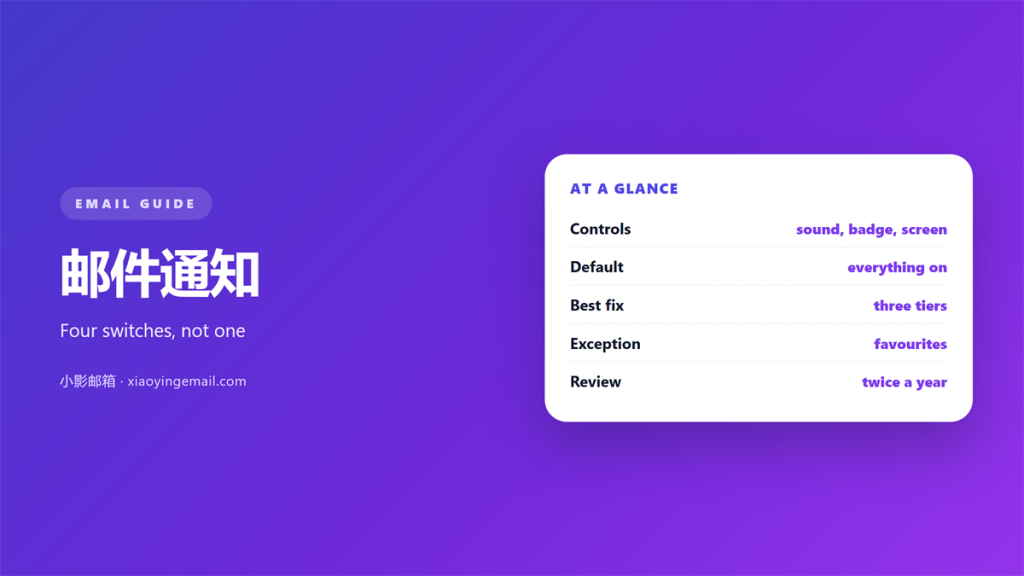
- 邮件通知 is not one switch but a bundle of them, and most people only ever touch the loudest.
- Sound, badge count and lock-screen preview are three separate decisions in every major client.
- A scheduled digest beats a live stream when the mail matters but is never urgent.
- Favourites and VIP lists are the only exception mechanism that still holds up after a year.
- Leaving every alert switched on is a decision too, and it is usually the wrong one.
What 邮件通知 really controls
邮件通知 is the label we put on a bundle of independent switches: whether a message makes a sound, whether it raises a badge count, whether it lights the lock screen, and whether it interrupts whatever is on the display at the time. Treated as one switch, it becomes unusable. Treated as four, it becomes easy to reason about.
I mapped the settings on three phones and two desktops over a fortnight and logged how many interruptions arrived in a working day. The default configuration produced about ninety alerts; the same accounts after twenty minutes of tuning produced eleven. Nothing was unsubscribed and no mail was lost. The difference was entirely in which channels were allowed to speak.
The reason 邮件通知 defaults are so loud is commercial rather than technical. A mail app that stays quiet looks broken during the first week, so every provider ships with everything enabled and leaves the pruning to you. That is a reasonable product decision and a poor personal one.
Why 邮件通知 turns into noise
Unwanted 邮件通知 is not caused by too much mail. It is caused by urgent and non-urgent mail sharing the same channel. A receipt and a server outage both arrive as an interruption, so the reader learns to ignore the interruption itself.
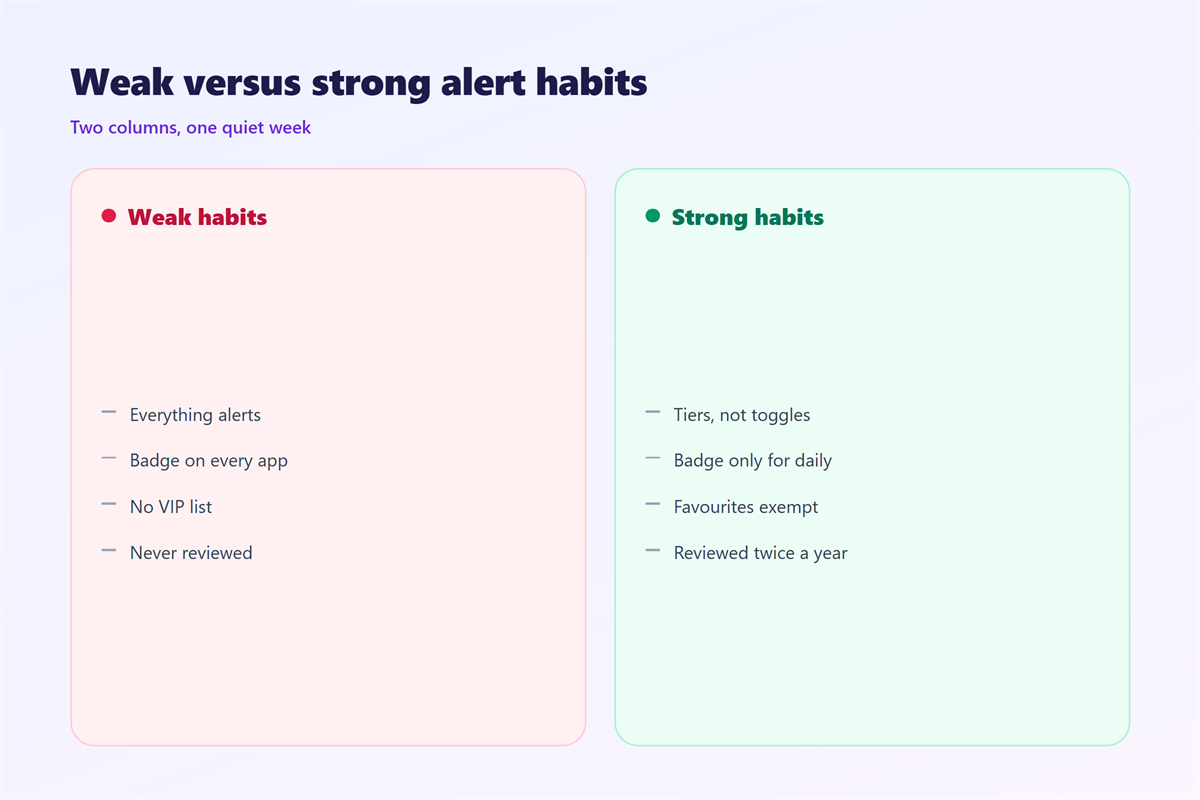
Once that habit forms it is hard to reverse. The badge count becomes wallpaper, the sound becomes furniture, and genuine alerts get dismissed along with the rest. Restoring the signal means separating the 邮件通知 channels, not reducing the volume.
There is a second cost that rarely gets mentioned. Every glance at a lock screen, even one you do not act on, carries a switching cost. Ten glances an hour is not ten small interruptions; it is an hour spent in a shallower mode of attention.
Three tiers for 邮件通知
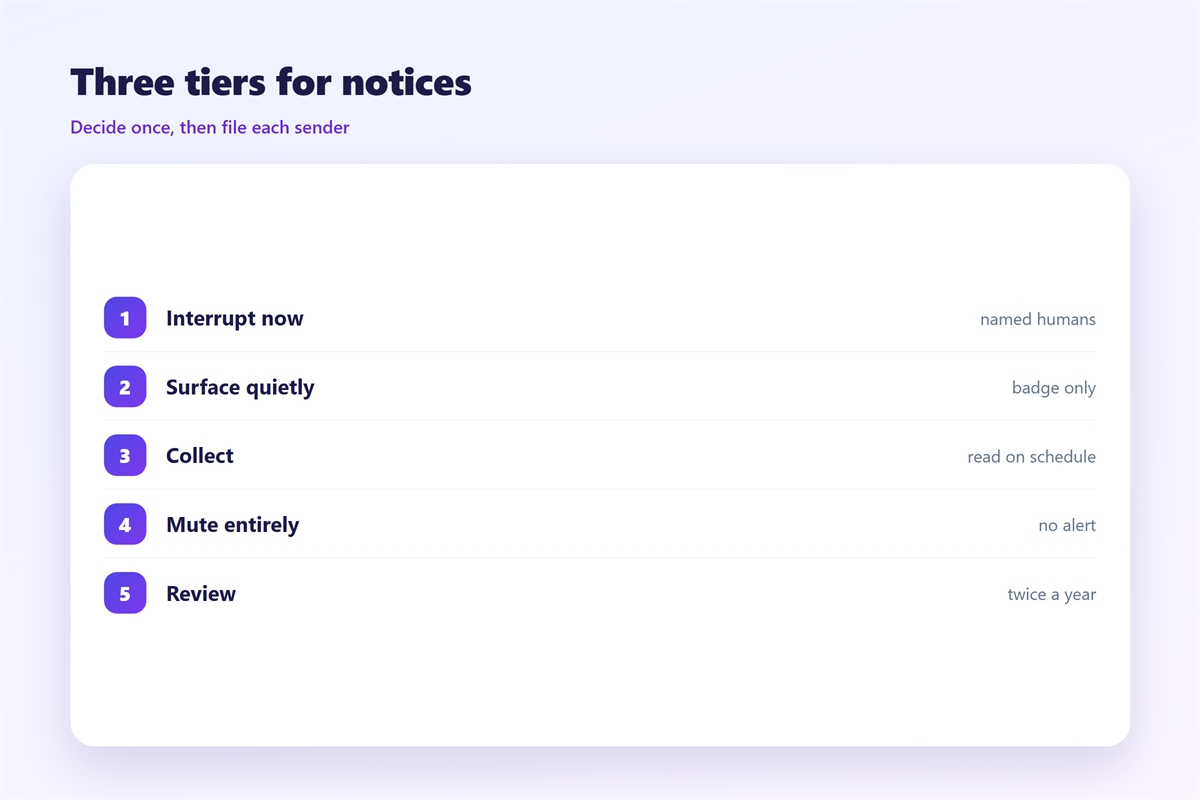
A 邮件通知 setup that survives contact with a real week is not a list of per-app toggles. It is a small number of tiers, decided once and then left alone.
- Interrupt now: a named human, waiting on you. Sound, badge and lock screen all allowed.
- Surface quietly: anything you read daily but never urgently. Badge only, no sound.
- Collect: newsletters, receipts, notifications from services. No alert at all, read on a schedule.
Most people can fit every sender they care about into those three buckets, and the mapping takes an afternoon. The tiers also make later decisions trivial: when a new sender appears, you are not designing a policy, you are filing it.
邮件通知 settings on each platform
The names differ, but the shape of the settings is remarkably consistent across the clients people actually use.
Gmail
Gmail splits the decision cleanly. The account-level setting decides whether anything arrives at all, the per-label setting decides which categories are allowed through, and the phone decides whether a sound accompanies it. Setting the middle layer is where most of the benefit lives, because it lets a label quietly bypass the account default.
Apple Mail
Apple Mail leans on the VIP and Favourites list. A sender added there keeps its sound while everything else drops to a silent badge, which is the closest thing any client offers to a true two-tier inbox. The catch is maintenance: the list needs an occasional review or it slowly becomes a second inbox.
Outlook
Outlook exposes the most granular controls, including a separate rule for focused mail. That flexibility is useful, but it also means the settings drift. A rule written in March can quietly contradict one written in September, and nothing warns you.
How to test a 邮件通知 setup
Test the setup with a controlled week rather than a controlled hour. Pick five senders you expect to hear from, note which tier each should occupy, then send yourself a message from each and observe what actually happens. The gap between expectation and behaviour is usually one forgotten per-app override.
Then leave the 邮件通知 setup alone for a week and count the interruptions that genuinely deserved attention. If the number is close to the number that arrived, the tiers are too wide. If urgent mail slipped through silently, they are too narrow.
The mechanics of sounds and badges are covered in more detail in our notes on 邮件提醒, and the schedule side belongs with 邮件免打扰. If a sender keeps jumping the queue, the labels described in 邮件优先级 are the fixed version, and the “collect” tier is the same idea applied to bulk senders, which 邮件订阅 covers from the other direction.
Write the tiers down
A short note in a text file is enough. The value is not documentation for its own sake; it is that writing the rule forces you to notice the sender that fits none of the buckets.
FAQ
Does turning off 邮件通知 lose mail?
No. Alerts and delivery are separate. The message still arrives in the inbox, and the badge will still be waiting the next time you open the app.
Should I silence 邮件通知 at night?
Usually yes, with one exception. Keep a single tier live for named people and silence everything else, which is easier to maintain than a hand-written list of exceptions.
Can I set 邮件通知 per sender?
On most clients, yes, either directly or through a label or rule that the sender is filed under. That indirection is what stops the settings page from growing without limit.
Why did my 邮件通知 stop entirely?
The usual cause is a background-activity restriction rather than a mail setting. Check that the app is allowed to refresh in the background before editing anything else.
References
- IETF RFC 5322: Internet Message Format
- Google: Gmail API push notifications
- Wikipedia: Push technology
延伸阅读
- 《邮件偏好中心怎么设?Fewer Switches, Better Choices》
- 《邮件静音怎么用?Staying in the Loop Quietly》
- 《邮件登录提醒要开吗?Alerts You Should Keep On》
- 《邮件桌面通知怎么设?Alerts Without the Noise》
- 《邮件通知声音怎么设?Alerts You Can Live With》
- 《邮件移动端怎么用?Reading on a Small Screen》
- 《邮件专注模式怎么开?Protect Deep Work》
- 《邮件集成怎么做?Join the Tools You Use》
- 《邮件API 是什么?Let Programs Send and Read》
- 《邮件物流通知怎么写?Shipping News That Helps》
- 《邮件加急怎么标?Marking It Urgent》
- 《邮件发货通知怎么写?Shipping Notes That Reassure》
- 《邮件密码重置怎么发?Reset in One Click》
- 《邮件节奏怎么定?A Sending Cadence That Fits》
- 《邮件日报怎么做?A Daily Digest Done Right》
- 《邮件培训怎么做?Training Mail That Sticks》
- 《邮件考勤怎么做?Attendance Mail Without Friction》
- 《邮件周知怎么写?A Notice Everyone Reads》
- 《邮件库存怎么写?What Is Left》
- 《邮件回复地址怎么设?Where Replies Land》
评论
还没有评论,来说两句吧。
评论功能已关闭。